Your PC Ate 47 GB and Didn't Even Say Thank You: A Field Guide to Windows' Hidden Junk
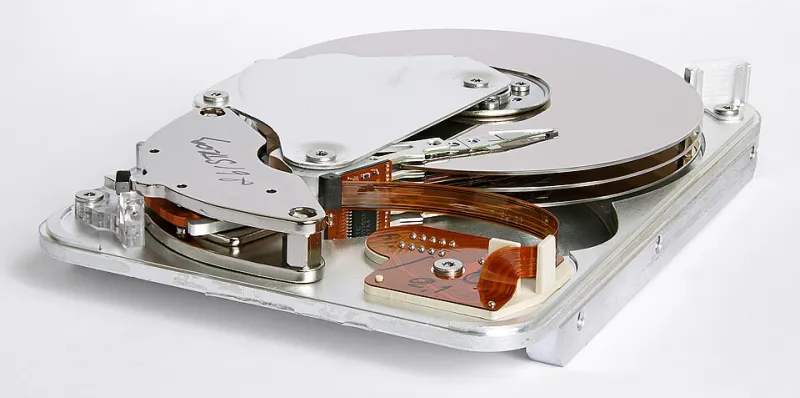
Photo: Eric Gaba (Sting - fr:Sting) This image was created with CombineZP by 11 ( It was created out of 11 single images.)., CC BY-SA 3.0, via Wikimedia Commons
Last Tuesday a friend called me in full panic mode. Her laptop, a perfectly decent machine she bought two years ago, kept flashing the dreaded "low disk space" warning. She'd deleted every photo she could bear to part with and uninstalled a handful of games. Still, the drive stayed stubbornly full.
Here's the thing: her files weren't the problem. Windows itself was.
If you've ever run a storage analyzer and watched gigabytes vanish into folders with names like WinSxS or FileRepository, this guide is for you. Let's find that missing space — and get it back without breaking anything.
First, See What You're Dealing With
Before deleting a single thing, you need a map. Windows' built-in Storage settings (Settings > System > Storage) give you a rough breakdown, but they're vague. "Apps & features" eating 80 GB? Cool, but which ones?
This is where a free tool like TreeSize Free earns its keep. Install it, right-click your C: drive, and run it as administrator. Within seconds you'll get a treemap of every folder, sorted by size. It's oddly satisfying — like an MRI for your hard drive.
When I ran it on my own machine, three culprits jumped out immediately:
C:\Windows\WinSxS— 14.2 GBC:\Users\me\AppData\Local\Temp— 6.8 GBC:\Windows\SoftwareDistribution\Download— 4.1 GB
Sound familiar? Let's tackle these one at a time.
The Safe Stuff: Delete These Without Worry
1. Temp Files
Windows and the apps you run constantly create temporary files, then forget to clean them up. It's the digital equivalent of leaving empty cups around the house.
Press Win + R, type %temp%, and hit Enter. Select everything (Ctrl + A) and delete. Some files will refuse to leave because they're in use — just skip those. Totally normal.
2. Windows Update Leftovers
Head to C:\Windows\SoftwareDistribution\Download. This is where Windows stashes update installers it no longer needs. You can safely empty this folder. If Windows complains, pause updates first (Settings > Windows Update), clear the folder, then resume.
3. The Recycle Bin and Downloads Folder
Embarrassing but true: my Downloads folder had four copies of the same PDF, three installers for apps I'd already installed, and a 2 GB video file I downloaded in 2022 and never watched. Give it a proper once-over. Sort by size, work top-down, be ruthless.
The Official Route: Disk Cleanup and Storage Sense
Before you go folder-diving, let Windows do the heavy lifting:
- Search "Disk Cleanup" in the Start menu and run it as administrator.
- Click Clean up system files — this unlocks the big items.
- Check "Windows Update Cleanup," "Temporary files," and "Delivery Optimization Files."
- Hit OK and go make a coffee. This can take 20+ minutes.
The "Windows Update Cleanup" option alone often frees 5–10 GB, and it's the safe, sanctioned way to shrink update bloat. While you're at it, enable Storage Sense (Settings > System > Storage) so Windows automatically purges temp files going forward.
The Danger Zone: Do NOT Touch These Folders
Now for the warnings, because this is where people brick their installs:
C:\Windows\WinSxS— Yes, it's enormous. No, you cannot delete it manually. It's the component store, and it's load-bearing. The only safe way to trim it is runningDism /Online /Cleanup-Image /StartComponentCleanupin an admin Command Prompt. Even then, leave it alone if you're nervous.C:\Windows\System32— The classic. Deleting anything in here means reinstalling Windows. Full stop.AppDatafolders for apps you still use — NukingAppData\Localwholesale will erase your browser profiles, app settings, and saved logins. Go app-by-app instead.System Volume Information— That's your System Restore points. You can limit how much space they use, but don't delete the folder.
The Sneaky Stuff Nobody Talks About
A few more space hogs worth checking:
- Old Windows installations — If you upgraded recently,
Windows.oldcan hold 20+ GB. Disk Cleanup's "Previous Windows installations" option removes it (just know you lose the easy rollback). - Hibernation file —
hiberfil.syscan eat RAM-sized chunks of disk. If you never hibernate, runpowercfg /h offin admin Command Prompt. - Orphaned app data — Uninstalled programs often leave folders behind in
AppData\Roaming. If you spot a folder for software you removed months ago, it's fair game. - Cloud sync duplicates — OneDrive's "always keep on this device" setting quietly mirrors your entire cloud library locally. Check your OneDrive settings for free-up options.
The Bottom Line
Between temp files, update leftovers, and a Downloads folder that's basically a landfill, my cleanup pass freed 38 GB in about an hour. My friend's machine got back 31 GB and stopped flashing warnings.
None of this requires paid software or registry voodoo — just Windows' own tools, TreeSize Free, and a healthy respect for the folders in the danger zone. Run a cleanup every couple of months and you'll never again wonder where your storage went.
Now if you'll excuse me, I have a date with my own Downloads folder. It's not going to empty itself.