That Junk Drawer Full of Mystery Flash Drives? Let's Finally Do Something About It
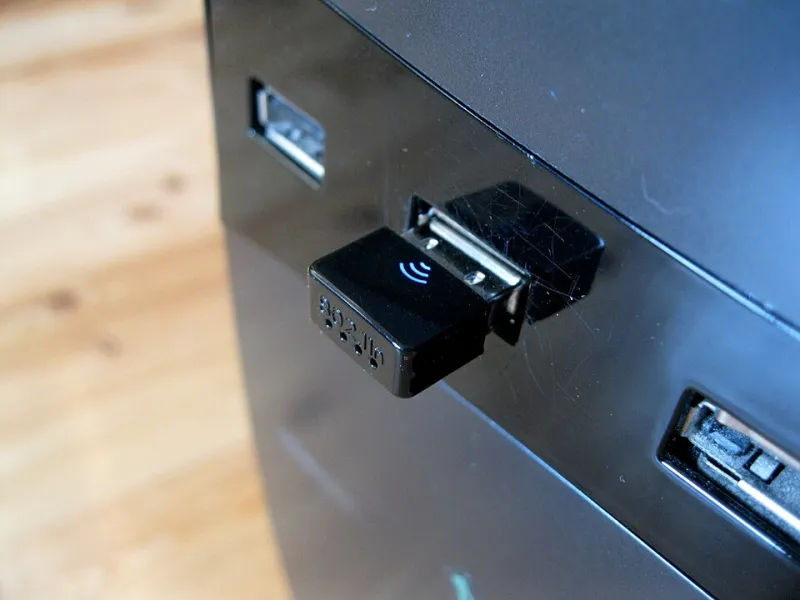
Photo: Santeri Viinamäki, CC BY-SA 4.0, via Wikimedia Commons
Everybody has the drawer. The one with a 4 GB stick from a dentist's office, a 16 GB drive in the shape of a cartoon character, and two unlabeled ones you're vaguely afraid of. Flash drives are cheap, they multiply like Tupperware lids, and we treat them terribly.
Today we're turning that drawer from a liability into a functioning toolkit. These are the free utilities I keep installed for exactly this purpose — what they do, when to reach for them, and none of the fluff.
Problem 1: 'This Device Can't Be Ejected' — Fix It With USBDeview
Windows loves to tell you a drive is in use while refusing to say what's using it. Before you yank the stick and hope for the best, try USBDeview from NirSoft. It lists every USB device that's ever touched your PC, shows what's currently connected, and lets you force-disconnect a stubborn drive.
It's a tiny portable app — no installation — which makes it perfect for the kind of tool you need once a month at the worst possible moment. A word of caution: force-ejecting can corrupt files mid-write, so only do it when Windows swears nothing is actually being written.
For the truly paranoid (read: smart), the built-in Quick Removal policy in Device Manager is fine for most sticks and lets you pull them without ejecting — as long as you're not mid-copy.
Problem 2: Choosing the Right File System (Without the Guesswork)
Ever plugged a drive into a friend's Mac or a car stereo and had it not show up? That's a file system problem, and it's fixable in about 90 seconds:
- FAT32 — works with literally everything (cars, TVs, game consoles), but can't hold a single file over 4 GB. Windows' own formatter won't do FAT32 on big drives, which is where Rufus or GUIFormat comes in — both will format any drive to FAT32 for free.
- exFAT — the sensible default for modern drives. Big files, works on Windows and Mac, but some older car stereos and smart TVs ignore it.
- NTFS — Windows-only features like permissions and huge files. Great for backup drives that stay in the Windows family, bad for anything that travels.
The 30-second decision: drive goes in a car or TV? FAT32. Drive goes between PCs and Macs? exFAT. Drive is a Windows-only backup? NTFS.
Problem 3: Making a Bootable USB (For When Windows Eventually Betrays You)
Every PC owner should have one recovery stick in the drawer. When Windows won't boot — and someday it won't — a bootable USB is the difference between a 20-minute fix and an expensive panic call.
Rufus is the undisputed champ here. It's free, open-source, portable, and fast. Point it at a Windows 11 ISO (downloadable straight from Microsoft), pick your flash drive, and it does the rest. It can also sidestep some of Microsoft's more annoying hardware requirements when creating Windows 11 installers on older machines — a feature that's saved several of my family members' laptops.
Grab the largest decent-quality stick in your drawer, dedicate it to this job, label it with a Sharpie, and forget about it until doomsday.
Problem 4: The Drive That's 'Corrupted' — PhotoRec to the Rescue
Sooner or later, a stick will refuse to open. Windows offers to format it, which is the one button you should never click if there's anything on there you care about. Formatting doesn't erase your data immediately — it just removes the map to it.
That's where PhotoRec comes in. Despite the name, it recovers photos, videos, documents, and more from drives Windows has written off. It pairs with TestDisk (same free download), which can sometimes repair the drive's partition table outright.
Fair warning: PhotoRec's interface looks like it was designed in 1995 because, essentially, it was. It's a text-based menu system, and it recovers files with generic names into a folder you choose — so point it at a different drive, not the dying one. It's not pretty, but it has pulled wedding photos off sticks that were officially dead. That earns it a permanent spot in the toolbox.
Your New Flash Drive Routine
Here's the whole system, distilled:
- Label every drive. A strip of masking tape beats archaeology every time.
- One drive becomes the bootable recovery stick (Rufus, one evening, done).
- Format mystery drives to exFAT before putting them into rotation.
- Install USBDeview and PhotoRec on your PC now, before you need them.
Total cost: zero dollars. Total setup time: maybe 30 minutes. And the next time a drive acts up or a laptop dies, you'll be the person with the answer instead of the person in the parking lot of a big-box electronics store at 9 p.m. buying an overpriced stick out of desperation. Trust me — that's a much better place to be.