That WinRAR Nag Screen Has Been Lying to You: Free Unzippers Worth Installing in 2026
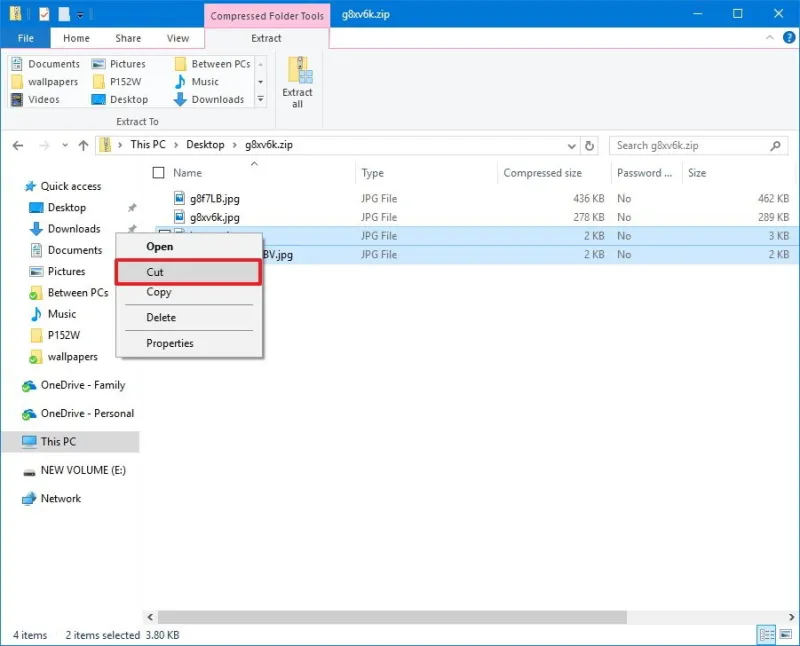
Photo: person unzipping compressed files on laptop computer screen, via cdn.mos.cms.futurecdn.net
Here's a fun bit of trivia: WinRAR's 40-day free trial has famously never actually ended for millions of users. The software keeps working after the trial expires, hitting you with a polite 'please purchase a license' popup every time you open it. It's become one of tech's longest-running jokes.
But here's the thing nobody says out loud: you don't need to put up with the nag screen at all. There are free tools that do everything WinRAR does — some faster, some prettier, some with actual security updates. We grabbed five of them, zipped up a batch of test files (a mix of photos, PDFs, and a couple of videos, about 2.1 GB total), and ran them through the wringer.
The Contenders
7-Zip — the old reliable. Open source, tiny download, unglamorous interface. It's been around since 1999 and it's still the default recommendation on every tech forum for a reason.
PeaZip — 7-Zip's flashier cousin. Same underlying power, but with a friendlier interface and built-in tools for encrypting and shredding files.
NanaZip — the new kid. A modern reimagining of 7-Zip built for Windows 11, complete with dark mode and right-click menu support that doesn't feel like a chore.
Zipware — a lightweight option aimed squarely at people who just want to double-click a .zip and be done with it.
Windows' built-in extractor — yes, the one that comes with Windows. We included it as a control group.
The Speed Test
We extracted our 2.1 GB test archive three times per tool and averaged the results:
| Tool | Time (avg) |
|---|---|
| 7-Zip | 48 seconds |
| NanaZip | 50 seconds |
| PeaZip | 54 seconds |
| Zipware | 57 seconds |
| Windows built-in | 1 min 22 sec |
7-Zip and NanaZip are essentially the same engine under the hood, so their near-identical times make sense. The built-in Windows extractor trails badly on large archives — fine for a single PDF, painful for a game mod or a batch of photos.
The Download Safety Checklist
Before you install any of these, a word of caution: fake installer sites are a genuine problem. Search "7-Zip download" and you'll find lookalike sites bundling adware or worse. Run through this list before clicking anything:
- Go to the official source. 7-Zip lives at 7-zip.org. PeaZip is at peazip.github.io. NanaZip is distributed through the Microsoft Store and GitHub. If the URL looks off, close the tab.
- Check the installer size. 7-Zip's installer is around 1.5 MB. If yours is 40 MB, something's wrong.
- Watch the checkboxes. Legitimate tools from these developers don't bundle toolbars or "helper" apps. If you see one, back out.
- Let Windows Defender scan it. Right-click the installer and hit Scan before running it. Takes two seconds.
So Which One Should You Get?
If you just need to open a .zip once in a while: honestly, the built-in Windows extractor might be all you need. It handles standard .zip files fine. The moment you hit a .7z, .rar, or .tar file, though, it shrugs at you — that's when you install something else.
For most people: install NanaZip if you're on Windows 11 and want something that feels native. It's free from the Microsoft Store, which also sidesteps the fake-download problem entirely.
For power users: 7-Zip remains the king. It's faster than everything else we tested, handles more formats than you'll ever encounter, and it's been trustworthy for over two decades.
Skip if you can help it: paying $40-ish for a WinRAR license in 2026. It's a fine program with a legendary history, but the free options have caught up and passed it.
The bottom line: the nag screen was never a bill. Uninstall the guilt, install one of these, and move on with your life.