I Copied 100 GB Four Different Ways So You Don't Have To (With Real Timer Results)
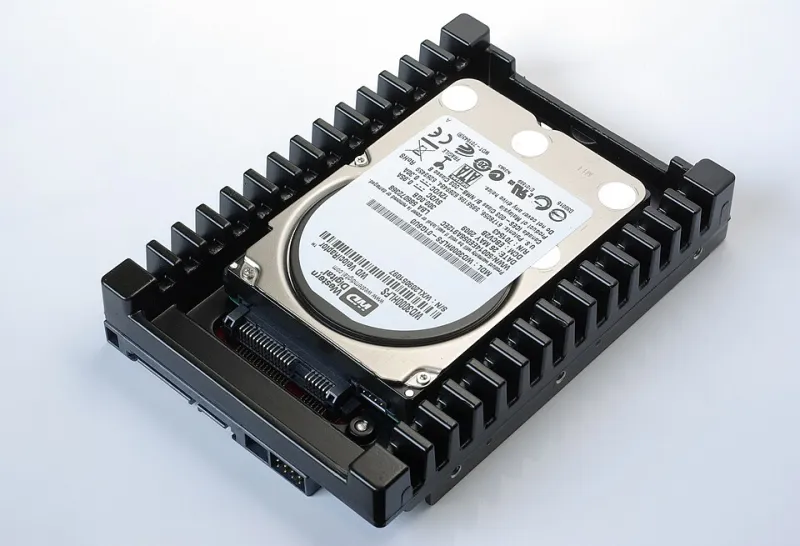
Photo: smial (talk), FAL, via Wikimedia Commons
So you bought a new drive. Maybe it's a big external SSD from Costco, maybe it's a replacement for that old spinning hard drive that's been making concerning noises since 2019. Either way, you've got one job: move everything over without losing your kid's entire baby photo archive.
Most people drag and drop, watch a progress bar, and pray. But is that actually the fastest way? I decided to find out, using a real-world 100 GB library of photos, videos, and miscellaneous phone backups.
The Contenders
I pitted four methods against each other on the same Windows 11 machine, same drives, same files, run twice each (best time recorded, because even benchmarks deserve a warm-up lap):
- Windows Explorer copy/paste — the default everyone uses
- Robocopy — the command-line tool that's been hiding in Windows since before some of you were born
- TeraCopy — the free third-party copy utility with a loyal following
- FreeFileSync — the sync tool that does more than just copy
The test folder: 14,203 files, 100.4 GB, a mix of small JPEGs, big RAW files, and 4K video clips. That's about as nasty a workload as you can throw at a copy operation — lots of tiny files plus some absolute monsters.
The Results
Here's what the stopwatch said, moving from an internal SATA SSD to a USB 3.2 external SSD:
| Method | Time | Files/second |
|---|---|---|
| Windows Explorer | 14 min 38 sec | ~16/sec |
| Robocopy (default) | 9 min 51 sec | ~24/sec |
| Robocopy (/MT:16) | 8 min 07 sec | ~29/sec |
| TeraCopy | 10 min 22 sec | ~23/sec |
| FreeFileSync | 9 min 44 sec | ~24/sec |
Windows Explorer came in dead last, trailing the winner by over six minutes. On a 100 GB copy, that's a 33% penalty just for using the built-in tool. On bigger libraries — say, 500 GB of vacation footage — you're burning close to half an hour.
Why Is Explorer So Slow?
Explorer copies files one at a time, and it pauses to enumerate, update the dialog, and generally be polite about it. Robocopy with the multi-threaded flag (/MT) runs multiple copy streams simultaneously, which is a huge win when you've got thousands of small files. For one gigantic file, the gap shrinks — the drive itself becomes the bottleneck.
The 'Estimated Time Remaining' Lie
Every one of these tools showed a time estimate. Every one of them lied.
During the Explorer run, the estimate swung from "2 minutes remaining" to "47 minutes remaining" to "5 minutes remaining" within the same five minutes of wall-clock time. Why? The estimate is based on recent throughput, not the whole job. When it hits a stretch of tiny files, throughput craters, and the estimate panics. When it hits a big video file, throughput soars, and the estimate gets cocky.
Rule of thumb: ignore the estimate. Trust the GB counter. If it says 34 GB of 100 GB done and it's been running eight minutes, you've got a rough sense of what's left. The countdown clock is entertainment, not information.
Which One Should You Use?
There's no single winner — it depends on who you are:
- The "just let me drag it" crowd: TeraCopy. It's free for personal use, replaces the copy dialog with something that shows throughput, lets you pause/resume, and verifies the copy afterward. It also integrates into Explorer, so your habits don't change. That verification step alone is worth it when migrating irreplaceable photos.
- The slightly nerdy: Robocopy. It's already on your PC — no install. A command like
robocopy D:\Photos E:\Photos /E /MT:16 /R:1 /W:1copies everything, retries failed files once, and uses 16 threads. It's what IT folks have used for decades for good reason. - The "I'll be doing this regularly" crowd: FreeFileSync. Once your initial copy is done, it only moves what changed. For ongoing backups of a photo library that grows weekly, that's the smart play.
- One-time small moves: Honestly, Explorer is fine. If you're copying three documents to a flash drive, don't overthink it.
Two Warnings Before You Migrate
First, verify. Whatever tool you use, make sure it checks the copied files against the originals (TeraCopy and FreeFileSync both do this; Robocopy does with the right flags). A silent corruption during a copy is the worst kind of problem because you won't notice until you need that file.
Second, don't delete the source until you've spot-checked the destination. Open a few folders, play a video, view some photos. Only after you're satisfied should the old drive get wiped or retired.
The Bottom Line
For a 100 GB library, Robocopy with multithreading was the clear speed champion, but TeraCopy is the pick for most everyday users — it's nearly as fast, friendlier, and verifies its work. FreeFileSync earns its keep if this becomes a recurring chore. And Explorer? It'll get there eventually. Just don't stare at that time estimate. It's not telling you the truth.