The 4 GB Video I Killed for Science: Five Free Recovery Tools, Honestly Tested
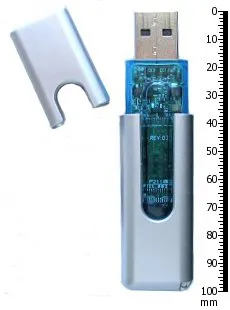
Photo: Dori, Public domain, via Wikimedia Commons
I have a bad habit of testing disaster scenarios on purpose. This time it was a 3.8 GB, 12-minute 4K video of my cousin's backyard wedding — a file I had already backed up twice, so nobody's memories were actually at risk. I copied it to five identical 32 GB USB 3.0 flash drives, confirmed each copy played, and then hit Shift+Delete on every one.
Why five drives? Because recovery tests are only fair if you do not scan the same drive five times. Every scan can write logs, touch free space, or change what the next tool sees. One drive per tool, same file, same delete method, no new files written afterward. That is the closest I could get to a controlled experiment without a lab coat.
What 'free' means in 2026
Free recovery software is a messy category. Some tools are genuinely free, some are free to scan but charge to save, and some come wrapped in installers that want to add a browser toolbar or a 'system optimizer' you never asked for. I treated all three behaviors as part of the review, because the moment after an accidental delete is not when you want to play guess-the-bundleware.
The test file mattered, too. A 4 GB video is big enough to expose free-tier save limits and slow enough to make scan speed noticeable. A 40 KB Word document would have made everybody look like a hero.
The five tools and what happened
Microsoft Windows File Recovery
This one is free from Microsoft, which is the good news. The bad news is that it is command-line only. If you are comfortable typing a command, it is a clean option with no upsell and no installer junk. My first regular-mode scan did not surface the video. A signature-mode scan did, after about 47 minutes, and it recovered a playable file. The original filename was gone — I got a generic name that looked like a serial number — but the video opened and the audio matched.
Verdict: Keep it around if you do not mind a terminal window. It is not the friendliest tool for a panicked Sunday-night user.
Recuva
Recuva is the tool most people think of first, and for good reason. The wizard is plain English, the quick scan finished in about three minutes on my drive, and it found the video with its original filename and folder path intact. The recovered file played start to finish. The installer did offer some extra software during setup — I declined it, and I would decline it again. That is not a dealbreaker, but it is a reminder to read the checkboxes.
Verdict: The best first stop for most Windows users who want a normal-looking app.
PhotoRec
PhotoRec looks like it was designed in 2003 and never asked for a redesign. That is fine. It is portable, free, and stubborn. It ignores the file system and carves files by signature, which is useful when the drive's index is a mess. It took about 24 minutes and recovered a playable video, but the filename was gibberish. If you need the file more than you need the filename, it earns its place.
Verdict: Ugly, effective, and worth keeping as a last-resort tool.
Wise Data Recovery
This one is friendly and fast — the quick scan found the video in roughly five minutes and showed a preview. Then I hit the free-version wall. The app wanted an upgrade to save the full 4 GB file. That is a legitimate business model, but it is not the same kind of free as Recuva or Windows File Recovery. If you are recovering a small document, the free tier may be enough. For a big video, it was not.
Verdict: Fine for small files, frustrating for the exact scenario I tested.
Puran File Recovery
Puran is the quiet one. The interface is basic, the quick scan took about six minutes, and it found the video with enough of the original path to recognize it. The recovered file played normally. I did not get any bundleware during setup, and the free version handled the full 4 GB save. It is not as polished as Recuva, but it did the job without drama.
Verdict: A solid backup pick if Recuva does not find what you need.
The results, without the victory lap
Four of the five tools recovered a playable video. One found it but would not save the full file without payment. Recuva was the easiest full recovery, Windows File Recovery was the cleanest free option, PhotoRec was the best no-frills carver, and Puran was the low-drama alternative. Wise Data Recovery was the one that looked helpful until the bill showed up.
That does not mean Recuva wins for every file. If the drive is badly corrupted or the file system is toast, PhotoRec and Windows File Recovery's signature mode may be the only things that work. If you are on a work PC with no admin rights, PhotoRec's portability matters. Recovery tools are less like a single champion and more like a small toolbox.
The first 10 minutes after an accidental delete
This is the part that matters more than any ranking.
-
Stop using the drive. If the file was on an external drive or USB stick, unplug it. If it was on your system drive, stop installing things, stop downloading things, and stop saving new files. Deleted files are not gone until their space is overwritten.
-
Do not download the recovery tool to the same drive. If you deleted a file from
D:\, do not install the recovery app toD:\. Use another drive or another PC if you can. -
Check the Recycle Bin first. It sounds obvious. It is also the fastest possible win, and Shift+Delete is not the same as emptying the bin.
-
Pick one tool and scan once. Running five tools in a row on the same drive is how you turn a recoverable file into a forensic puzzle. Start with Recuva if you want a GUI. Use Windows File Recovery if you are comfortable with commands. Go to PhotoRec if the file system is damaged.
-
Save recovered files somewhere else. Never save them back to the drive you are recovering from.
What I would keep on hand
For everyday PC users, I would keep Recuva installed and know that Windows File Recovery exists. That pair covers most accidental deletes without asking for money at the save screen. I would keep PhotoRec in a portable folder for the ugly cases, and I would treat any recovery app that begs for an upgrade before saving a 4 GB file as a tool for small files only.
The 4 GB video came back. My cousin's wedding is safe. My USB drives, however, have seen things. If you deleted something important today, stop writing to that drive first. The software can wait ten minutes. The file cannot.